
Theme
Node.js sites
Upload and run a Node.js application using NitHost’s start, build, and restart controls.
Who can use this page? Create sites with an eligible role. Starting, restarting, building, and stopping a Node app require manage permission on that site. File access alone does not grant these controls.
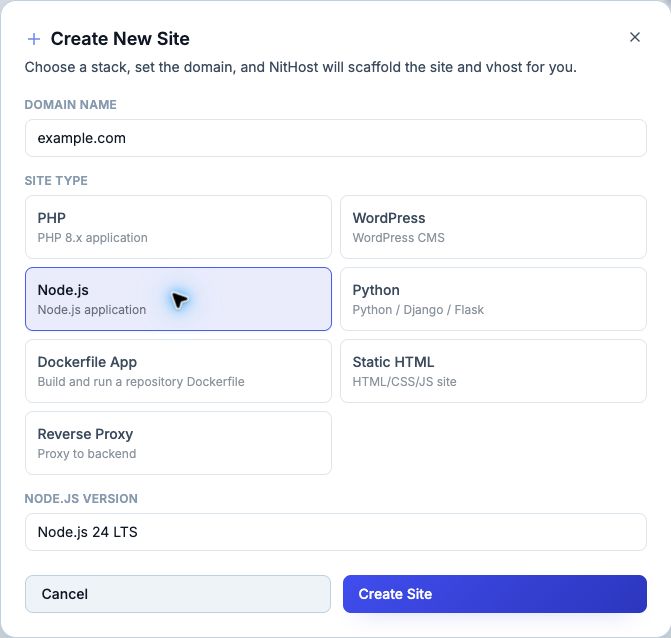
Create
- Create a site → Node.js
- Choose Node.js version (24 LTS or 22 LTS for new sites)
- Create Site
Server version matters
The default build skips missing build scripts in the September 2026 update. If your hosting service has not applied it yet, the older behavior still applies. If your server still reports Missing script: "build", use the troubleshooting section below or contact NitHost support.
Deploy an uploaded app without SSH
You do not need SSH shell access for the standard upload-and-start workflow. Upload using File Manager or SFTP, then use Site Actions to build or start the app. SFTP-only access is sufficient for transferring files; you also need panel access with manage permission to control the app.
- Upload the project into the site's document root, normally
/var/www/example.com/public. Putpackage.jsondirectly in that directory, not inside an extra project folder. - Include your source files and preferably
package-lock.json. Let NitHost install dependencies on the server instead of uploading your computer'snode_modules. - Check the
scriptssection ofpackage.json. The upload workflow usesnpm run start; apps that need compilation must also provide abuildscript. - Set the Node.js version and App Port in Edit Site. The app must listen on that port and
0.0.0.0. NitHost suppliesPORT,HOST, andHOSTNAME, but your application must actually use the appropriate settings. - Add required environment variables.
- Choose the action that matches the app:
| App | Action |
|---|---|
| Ready to run directly, such as a JavaScript server with no compilation step | Start Node App |
Needs a production build, with a working build script | Build & Restart |
| Already running; only runtime configuration or code that needs no build changed | Restart Node App |
For a JavaScript server whose entry file is server.js, the scripts section can be:
json
"scripts": {
  "start": "node server.js"
}
This is a fragment of package.json; keep the rest of your existing file and use your app's actual entry file. This app does not need a build script merely to run on NitHost.
For an app that requires compilation, use its framework's production build and start scripts. A start command that expects generated output cannot work until that output exists.
Deploy from GitHub
Use Site Actions → Git Deployment to connect a repository. This is where you configure Application root, Build command, Start command, and Health-check path for Git releases. These are not custom command fields for manual uploads in Edit Site.
For Node Git deployments, a blank build command installs dependencies using npm ci when package-lock.json exists (otherwise npm install), includes development dependencies, and then runs npm run build --if-present. If you want an explicit install-only build command, use npm ci --include=dev when a current lockfile is present.
Once a Git source is connected, use Git Deployment → Deploy Now. Manual Build & Restart is blocked for Git-connected sites; Start/Restart preserves an active Git release rather than switching to manually uploaded files.
Version-aware helpers
For users who already have suitable server shell access, helpers pick the runtime from .nithost/node-version, .node-version, .nvmrc, or package.json engines:
bash
nithost-npm install
nithost-npm run build
nithost-node server.js
Start / stop from the panel
Site Actions:
| Action | Effect |
|---|---|
| Start Node App | For manual uploads, install production dependencies if node_modules is absent, then run npm run start |
| Restart Node App | Recreate the managed runtime; uses the same startup behavior as Start |
| Build & Restart | For manual uploads, install dependencies including development dependencies, run the build script if present, then restart after success |
| Stop Node App | Stop container (files remain) |
These actions run predefined commands, not an interactive terminal. The menu has no general-purpose command runner for one-off migrations or arbitrary shell commands.
Start/Restart does not reinstall dependencies when node_modules already exists. After dependency changes, restarting alone may leave old packages in place. Use Build & Restart to refresh dependencies; the updated default also supports apps without a build script. Existing build scripts that fail still prevent restart.
Environment variables
Set secrets in Environment variables. Restart after changes. Sensitive values are runtime-only and cannot be enabled for builds. Only non-sensitive variables explicitly marked available at build time enter builds.
Troubleshooting
Missing script: "build"
Symptom on older NitHost versions: Build & Restart reports that packages were added, then fails with:
text
npm error Missing script: "build"Cause: Dependency installation succeeded, but NitHost then ran npm run build. The app's package.json has no build script. Older versions always ran this script. The updated default uses npm run build --if-present, so an absent build script is skipped. Explicit custom Git build commands still run exactly as configured.
Resolution: If the app runs directly without compilation, choose Start Node App. Confirm that its start script points to the correct entry file. If the app requires compilation, restore the correct framework build script and run Build & Restart again; do not add an empty build script to hide a missing build step.
Funding messages, an npm update notice, and an audit vulnerability summary can appear before this error. They are not the cause of the missing-script failure. Review reported vulnerabilities separately; do not blindly run npm audit fix --force, which can introduce breaking dependency changes.
Other startup and build errors
| Symptom | Check |
|---|---|
| Missing script: "start" | Add the app's production start script to package.json; manual uploads run npm run start |
Missing package.json / ENOENT | Check the upload directory; the manifest must be in the document root used by the runtime |
| Missing module after an update | Check dependencies; Start/Restart skips installation when node_modules exists |
| 502 | Follow the step-by-step 502 checks; ask NitHost support for application logs if the process exits |
| Build fails | Lockfile missing/out of date; build command; Node version |
| Works locally not on panel | Check bind address, App Port, required environment variables, and build output |